> ## Documentation Index
> Fetch the complete documentation index at: https://bruno-a6972042-docs-restructure-by-product.mintlify.site/llms.txt
> Use this file to discover all available pages before exploring further.
# Install and Configure
To start using the Bruno VS Code extension, install it from the official [Visual Studio Code Marketplace](https://marketplace.visualstudio.com/items?itemName=bruno-api-client.bruno), or simply open the Extensions panel in your editor and search for **Bruno**.
Once installed, open a Bruno collection and begin sending API requests right from your editor.
## Usage
### Dual View Mode
Bruno VS Code extension offers two distinct viewing modes to suit different workflows:
1. **Using the Explorer** - File mode with syntax highlighting
2. **Using the Extension** - GUI mode with visual interface
### Using the Explorer
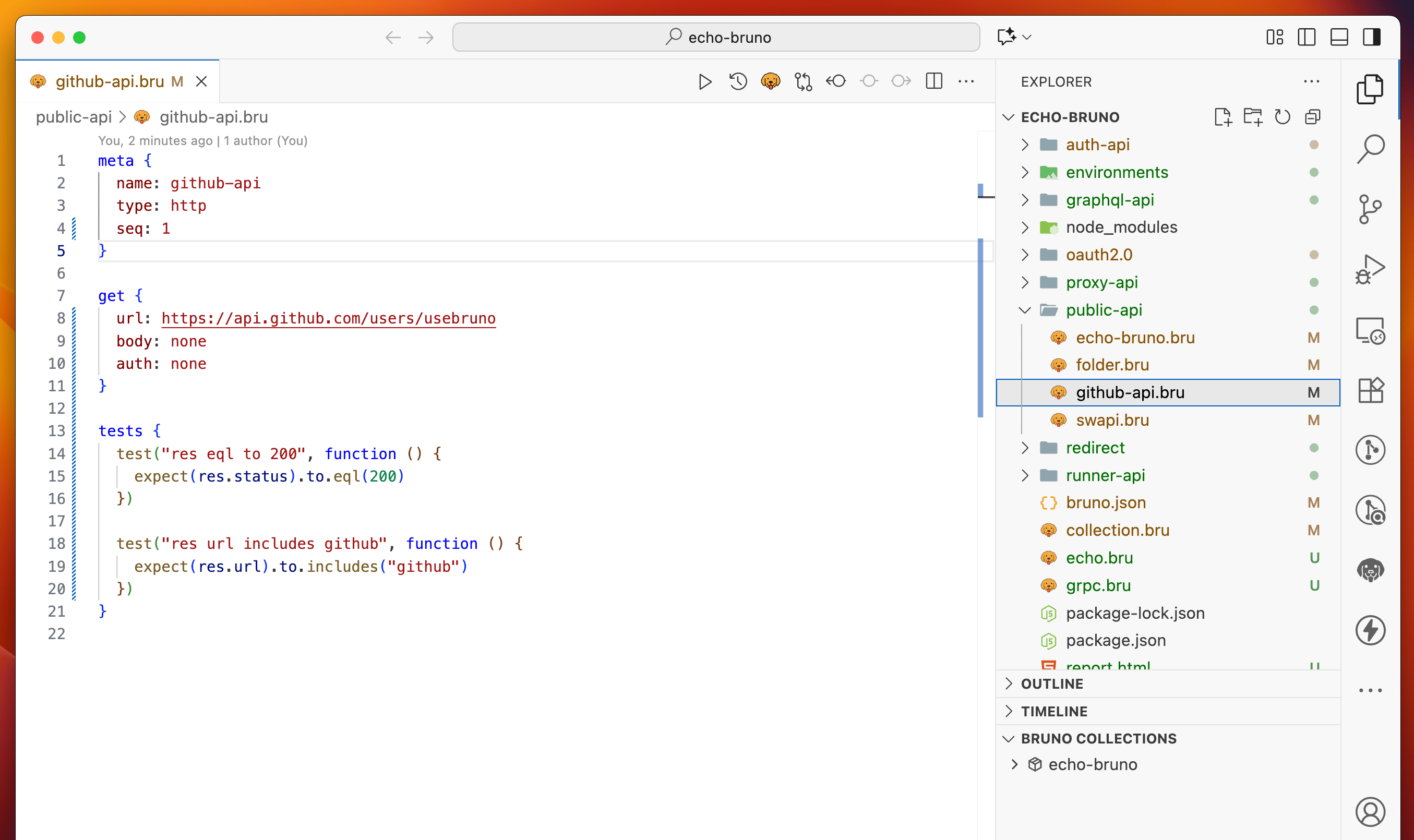
If you already have loaded Bruno collection into the editor the File mode will be default view to switch GUI mode click on **Bruno** icon.
 ### Using the Extension
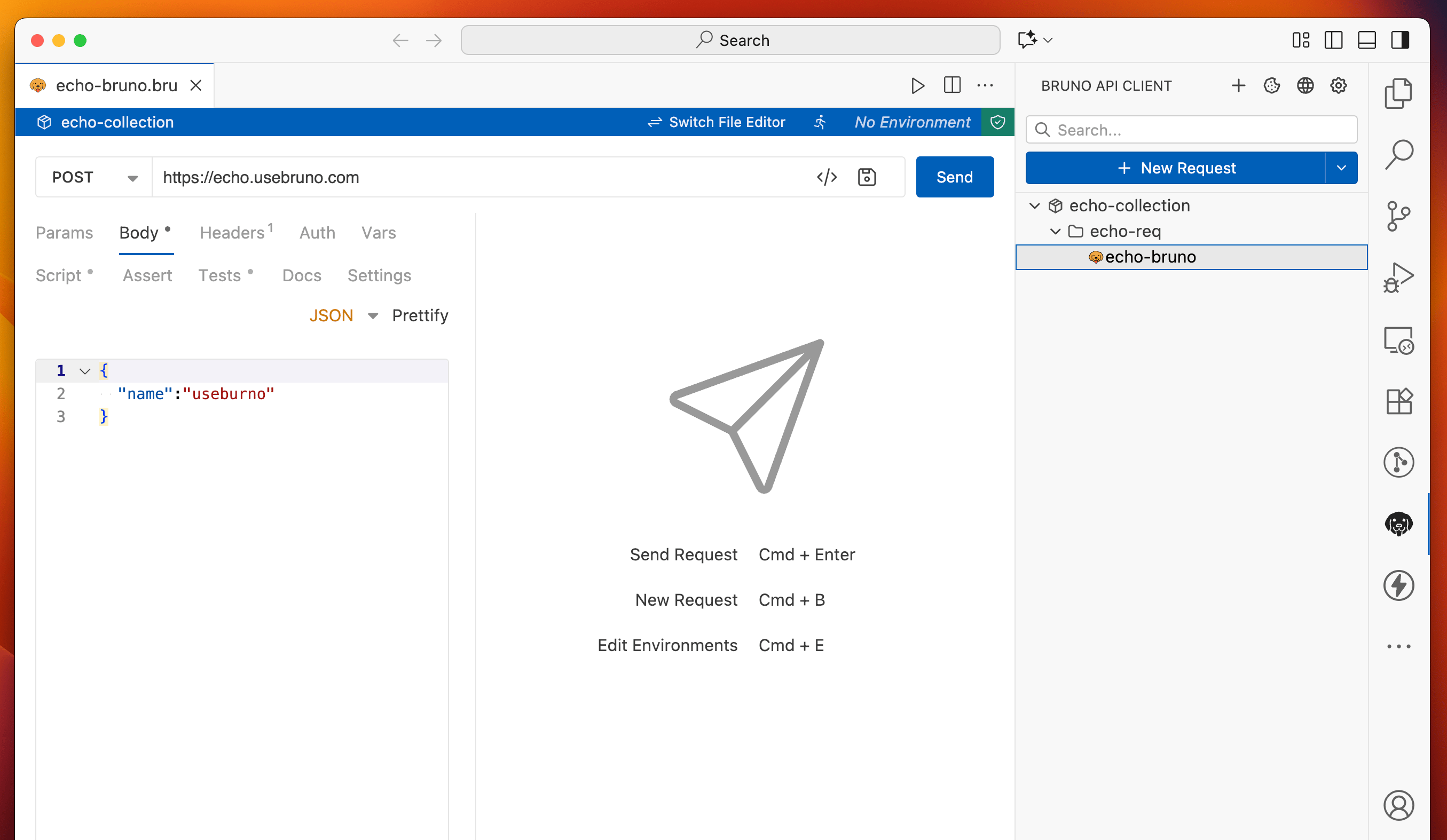
By clicking the extension in VS Code, you will have a similar experience to the Bruno Desktop App.
To switch between view modes, click the arrow icons in the top right of your editor.
### Using the Extension
By clicking the extension in VS Code, you will have a similar experience to the Bruno Desktop App.
To switch between view modes, click the arrow icons in the top right of your editor.
 ## Working with Collections
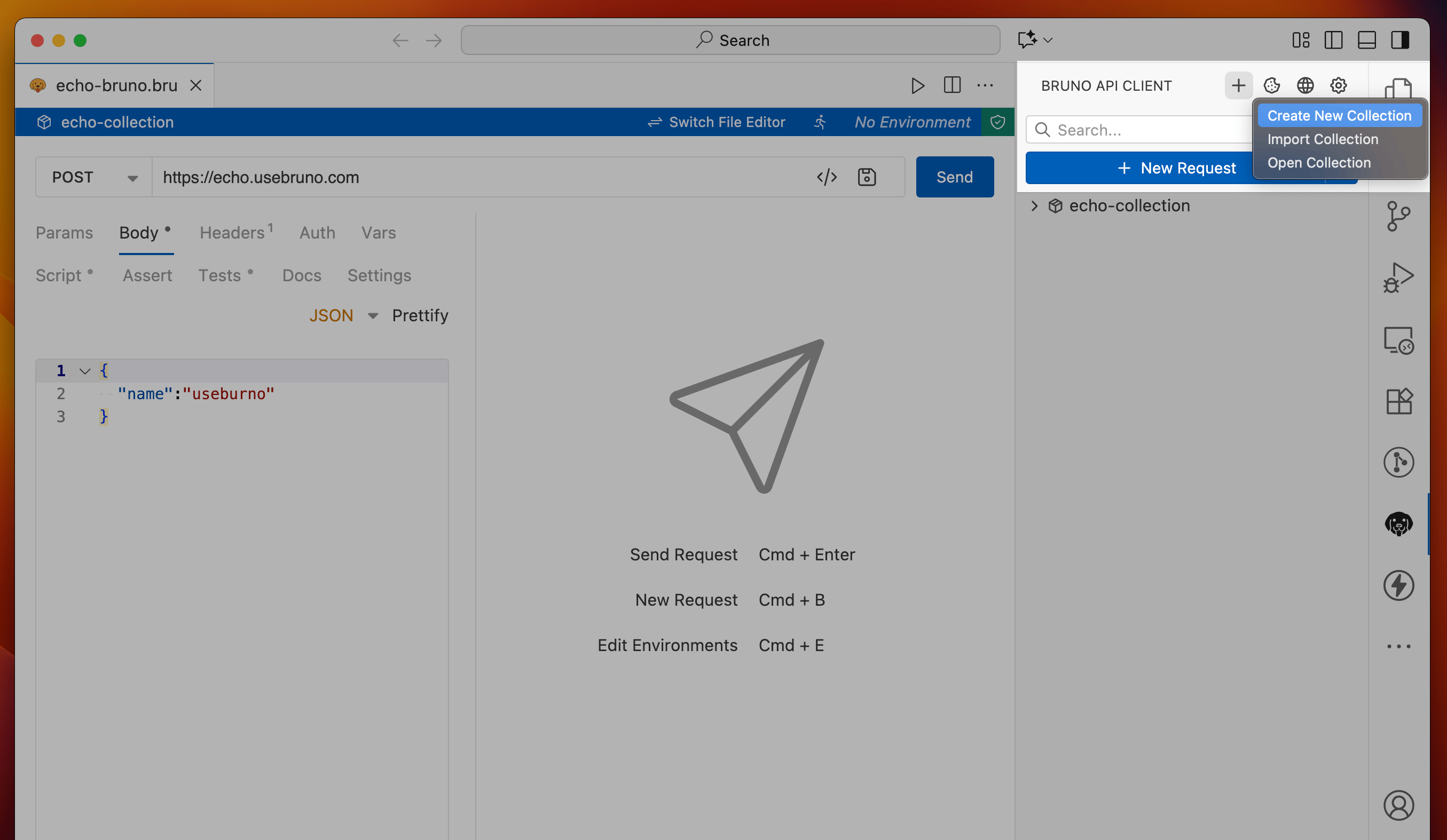
Similar to the desktop application, the extension will first start as a clean slate. Click the "+" icon to either open, create, or import a collection.
## Working with Collections
Similar to the desktop application, the extension will first start as a clean slate. Click the "+" icon to either open, create, or import a collection.